Despite the iPad having been on the market for some time now, tablets in general are on the cusp of an evolution. They're trying to find out just how big their screens should be, how thick or thin they should be, and how the user interface should work. Another major consideration is the transition from finger-only use to keyboard and stylus.
Trying to answer all those in one fell swoop is the Samsung Galaxy Note 10.1. On first look, the average person won't find much fault with the device, but after a few minutes they'll likely be turned off by its slippery back, its faux-metal shell, and its squeakiness. Can the Note 10.1 overcome its lackluster first impressions? Let's dive right into the review and see.
Video Review
Specs
The screen on the Note is a huge 10.1-inches, but the resolution falters a bit, coming in below HD at only 1290 x 800 pixels. The screen is bright and fairly high resolution, it's no Retina Display, but it looks very good, and has good contrast and color representation. Powering that display is a 1.4 GHz quad-core Exynos 4410 SoC with 2GB RAM. It's available in both 16GB and 32GB varieties, and both come with an external microsd slot which will let you expand up to another 32GB quickly and easily.
The differentiating features of this tablet are its front-firing speakers and suite of stylus-friendly apps which take advantage of its S-Pen stylus.
Hardware
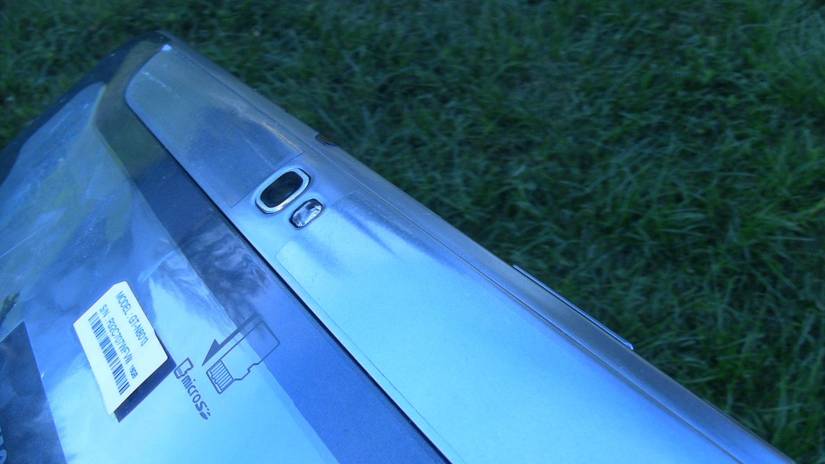
The Galaxy Note 10.1 has a 5MP camera with LED flash
The tablet has a 10.1' (255mm) touch screen, measures 0.35 x 7.1 x 10.3 inches (8.9 x 180.4 x 261.6mm), and weighs in at 1.32 pounds — a bit heavier than its predecessor. The front of the device is optimized for a landscape experience. At the top is the 1.9 megapixel front-facing camera and ambient light sensor. Near the bottom of the screen is the Samsung logo. To the right and left of the screen, just outside the bezel are two off-center speakers.
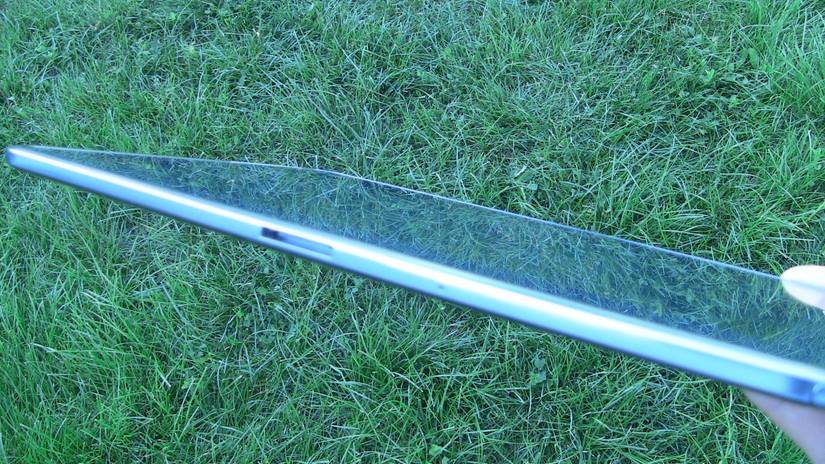
Samsung has stuck with their proprietary connector for data and charging
The right and left sides of the Note are completely bare. The bottom has the Samsung proprietary port and the microphone pin hole. Turning the Note over you'll find a slick back cover, along with a 5MP camera with LED flash.
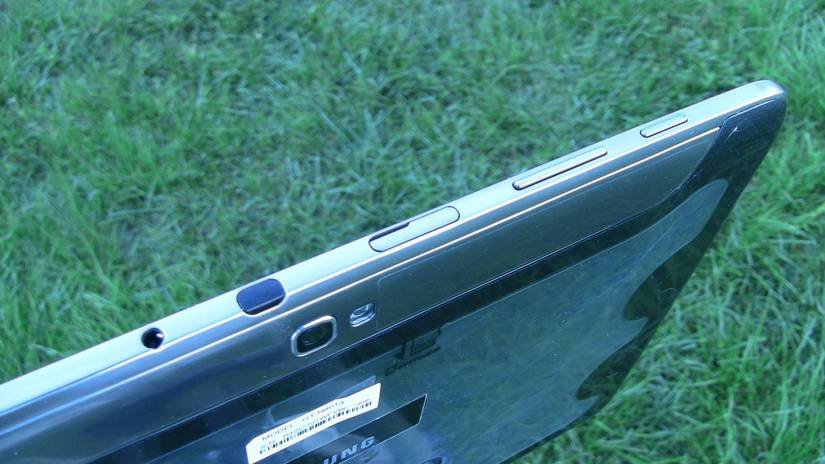
Power, inverted volume-rocker, microsd slot, headphone jack, and yes, that is an IR port
The top is where all the fun bits are. There you'll find the power button, the volume rocker (which is a bit unusual, but we'll get to that in a minute), the microsd card slot, headphone jack, and IR port. Yes, folks, IR seems to be making a comeback.
Have you ever noticed that the volume rocker on most phones and tablets works the way you'd expect it to in portrait, but seems backward from the on-screen volume indicator when rotated into landscape? So did Samsung, so they changed it. How? When in landscape mode, pressing the volume rocker to the right will turn the volume up, to the left will lower the volume. These directions match the on-screen volume control. That sounds logical, until you rotate into portrait, then up is down and down is up. That's just weird. It's consistent in its inconsistency, but it would have been nice if Samsung could have tied the button's behavior to the tablet's orientation, and adjusted the behavior accordingly.
The hardware itself looks beautiful. That beauty doesn't extend to the in-hand experience. The screen is a finger-print magnet that quickly gets covered by an oily film that is underscored by stylus trails across it. The back panel seems to be the same material and texture of the Galaxy S III, and is just as slippery. Though thin, the Note may be too thin, it creaks and squeaks while holding it. At least it looks nice.
UI
Samsung has gone to great lengths to make their user-interface look nice. The lock-screen emphasizes the fact that it's a tablet-enabled device with a beautiful picture of a fountain. Unlocking is as simple as dragging your finger across the screen, where you're met with a nice ripple animation and matching sound byte.
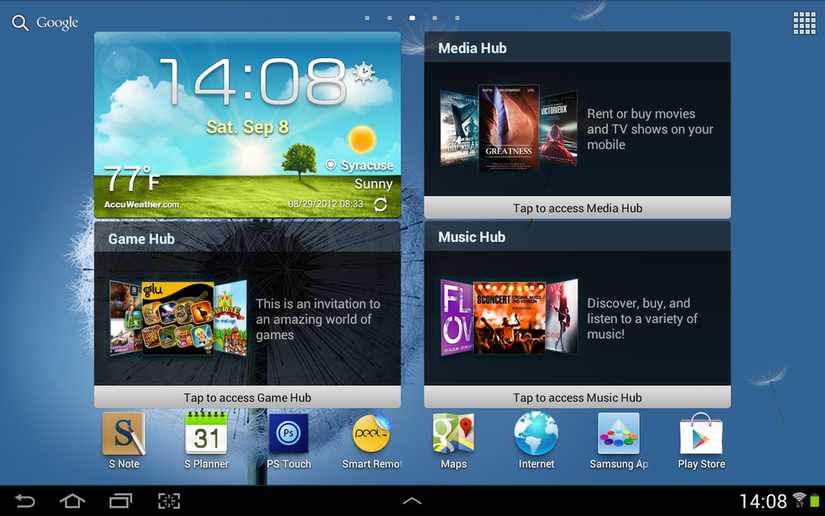
Samsung fills your homescreen with widgets and icons to get you started
The homescreen comes pre-loaded with widgets and shortcuts that help introduce you to what the tablet can do, and heavily features Samsung's stylus-friendly apps. One of the more subtle, yet elegant interface elements is the shortcut bar that automatically activates on the right side of the screen when you remove the S-Pen from the stylus-well. What's in the shortcut bar? Why, stylus-friendly apps, of course!
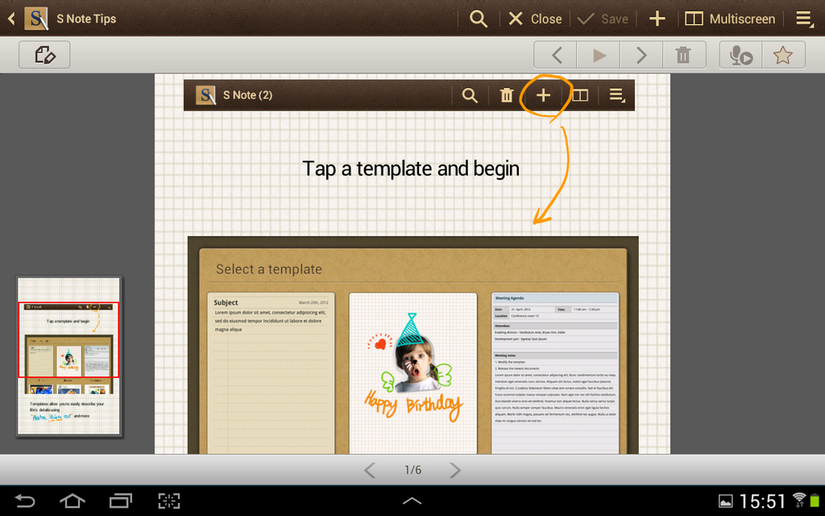
Of all the the S Note templates Samsung supplies, “plain paper” isn’t one of them.
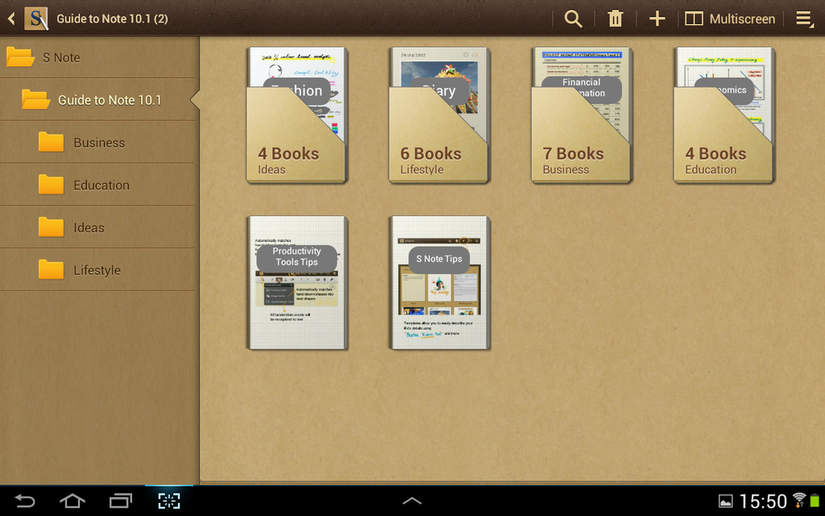
S Note uses “real world” folders to make you feel more at home
Samsung has an uphill battle to try and make an environment to take advantage of their S-Pen. To do so they've included S Note for note taking, PS Touch (Photoshop), and even a game called Crayon Physics which is one of the most challenging "simple" games I've ever played — despite it's horrifically annoying background music.
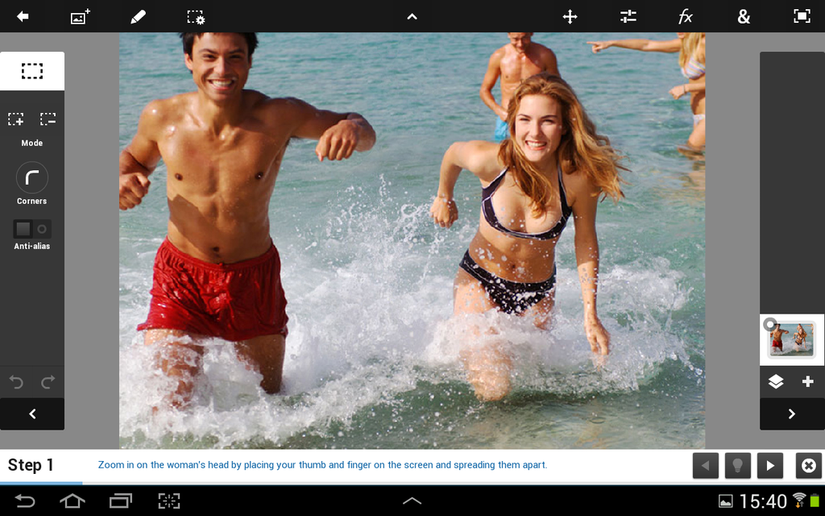
One area the S Pen comes in handy is with Photoshop Touch
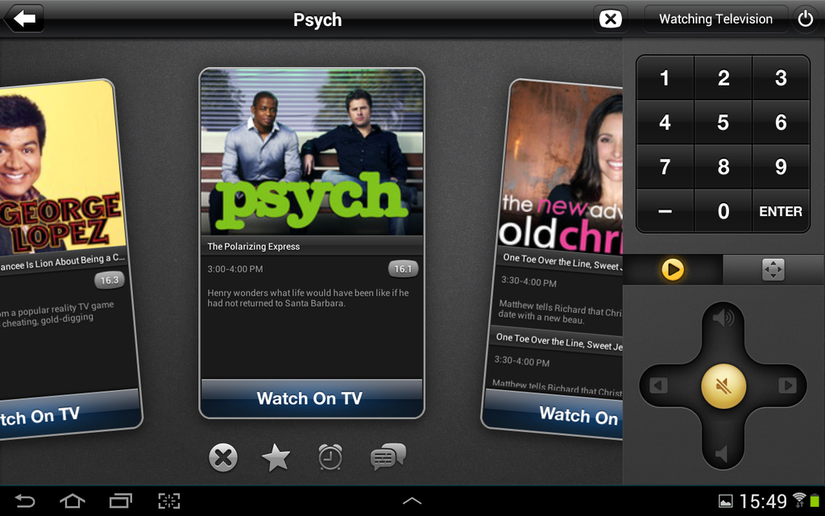
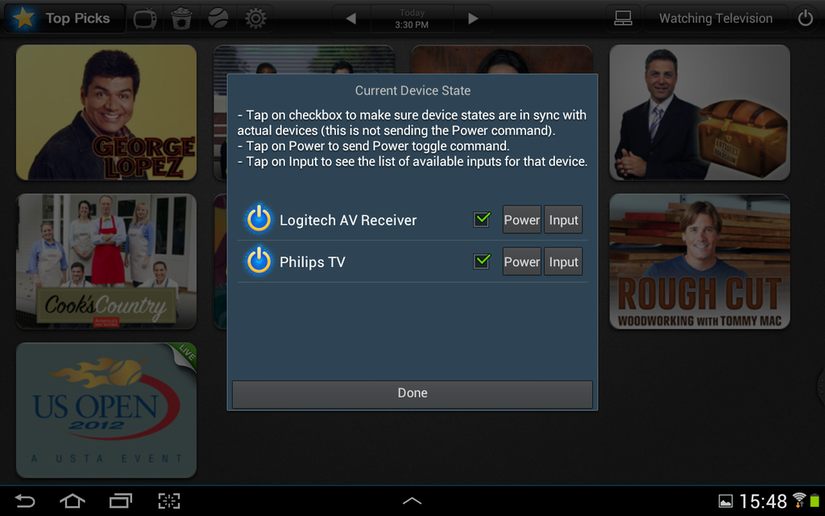
Aside from stylus-friendly apps, Samsung bundles their S Planner app, which is one of the nicer calendar replacements that I've seen, Polaris Office for all your office application needs, Textbooks from Kno.com which crashed every time I tried to use it, a spattering of Samsung apps, and Peel Smart Remote for your IR port.